This project has been created as part of the 42 curriculum by someyer
Description
Born2beroot
This project is about setting up Linux Server and it’s management. I chose Rocky Linux distribution.
Debian vs. Rocky
Choosing between Rocky Linux and Debian usually comes down to whether you want a system built for the Enterprise (Rocky) or one built by the Community (Debian). Both are popular and stable, free and open source.
Rocky has a different package manager dnf and .rpm format, while Debian has apt package manager and .deb format.
Because these are distinct distributions, their default software can differ. For instance, Rocky Linux leverages SELinux and firewalld for security, whereas Debian typically relies on AppArmor and UFW (Uncomplicated Firewall). You’ll also find variations in how configuration files are structured and located across the two systems.
Rocky Linux
-
Rocky Linux is an open-source enterprise operating system designed to be 100% bug-for-bug compatible with Red Hat Enterprise Linux®. Rocky Linux is under intensive development by the community.
-
It has a faster release cycle, which leads to newer software, then in Debian
-
By default, Rocky has better security and in general more hardened out of the box.
Debian
Debian is a free, open-source operating system known for its stability and strong commitment to free software. It forms the foundation for many major Linux distributions and is developed by a global volunteer community.
- It has conservative release cycle, which makes system extremely stable
- It also leads to older software
- It’s quite old. There is a lot of Linux distros, based on Debian (Ubuntu, Parrot OS, Kali, Linux Mint and Pop!_OS). There is also a ton of information and manuals for Debian based systems, which can make it a bit friendlier to someone, who just started to learn Linux.
- It utilizes AppArmor, which is a bit friendlier, then Rocky’s SELinux.
SELinux vs. AppArmor
Security-Enhanced Linux (SELinux)
is a Linux kernel security modul that provides a mechanism for supporting mandatory access control (MAC) policies. It works by labeling files, processes, and network ports, and enforcing policies that define which subjects (processes) can access which objects (files). SELinux operates on a "default deny" principle to enhance system security and prevent privilege escalation.
AppArmor
is also Linux kernel Mandatory Access Control (MAC) system. It enhances security by restricting programs’ capabilities (files, network, capabilities) via per-program profiles. It’s considered easier to use, then SELinux.
UFW vs. firewalld
Both of them are wrappers, that manipulate iptables or nftables and make firewalls easier to manage.
iptables and nftables (newer and better version of iptables) are low-level kernel packet-filtering frameworks. UFW and firewalld are high-level, user-friendly front-ends, that simplify managing rules for them.
UFW (Uncomplicated firewall)
UFW (Uncomplicated firewall) as it comes from it’s name – an easy-to-use tool, which aims to set rules in "iptables", the native firewall tables in Linux. It’s default for Debian and Debian-based Linux distributions.
- It has less features, then firewalld, (e.g. it doesn’t separate zones, it’s often not installed and running by default).
Note: I tried Ubuntu once (extremely popular distro for beginners, that based on Debian), it didn’t have UFW when I installed it to my desktop.
On Fedora I already had functional firewalld, which was running. I would say it makes operation systems by Red Hat (RHEL systems, Fedora and etc.) a bit more secure, when installed out of the box. I didn’t know what are firewalls, ports, how to manage them, but my first Linux distro (which I still use right now) secured me more, then Ubuntu did.
I watched several guides for ufw (because I haven’t tried it before and did Rocky Linux) and most of the commands were easier to remember, then in firewalld (you can find a youtube video, which briefly explains both UFW and firewalld here). Command examples:
ufw enable
ufw allow http
ufw allow https
ufw status
As you can see, it’s pretty self-explanaitory. Of course there is more of these commands, but they are easier, if you compare it with firewalld.
firewalld
firewalld is also made to set rules in nftables / iptables, but it offers dynamic, zone-based management. It’s a bit more complex one and suits well for servers. It’s comes by default in RHEL (Red Hat Enterprise Linux)/CentOS systems, including Rocky Linux.
firewall-cmd is a command to access a firewalld. I’d recommend to read it’s man page for a little bit, because it has a bit heavier syntax and commands are more easier to forget.
-
one of the features of firewalld – you can separate internal network to different zones. It’s kinda cool. Imagine a hospital where you have a lot of different facilities. You can separate them into different zones. Also as an example, you can have separate zone for work, separate for home and etc. You get the idea.
-
public zone is a default zone. If you don’t write a specifing zone, e.g. you add a port and don’t tell for which zone explicitly – firewalld will add it for public zone (bc. I think it’s the zone that user mostly wishes).
-
It has a bit heavier syntax and for a mere mortal student like me it’s harder to remember these commands. E.g. if you want some changes to apply after a reboot, you need explicitly to ask it.
Some commands:
firewall-cmd --get-default-zone
firewall-cmd --list-services
firewall-cmd --add-service=http
firewall-cmd --add-service=https
firewall-cmd --permanent --add-service=http
firewall-cmd --permanent --add-service=https
VirtualBox vs. UTM
VirtualBox is a program, that we use in our campus for creating virtual machines on top of your OS.
- It’s free and open source.
- It supports more Linux distros, in comparison with UTM.
- It also has more features (e.g. snapshots).
- It’s cross-platform and can be installed on your Linux / Windows / Mac
- On Apple silicon Macs (M1 or later), perfomance can be slower due to virtualization overhead, meaning your Mac has to split its resources between macOS and the virtual Linux system, which can slow things down.
UTM is a macOS-specific VM that utilizes Apple’s Hypervisor framework, which allows multiple VMs to run independently while staying isolated from the main OS. This results in better performance on Apple silicon Macs. UTM is built on a complex emulator called QEMU, with the added benefit of vastly simplifying the process of getting VMs up and running compared to using QEMU alone. Is also is more lightweight and uses fewer computer resources compared to VirtualBox.
- It doesn’t support as many Linux distros or advanced features.
- It lacks graphics virtualization, so it can’t handle 3D rendering. GPU-intensive tasks like gaming, video editing, or running complex simulations that require powerful graphics card are not supported.
- Of course, it’s limited to macOS.
- Better perfomance on M1 / later chips.
Brief Project Overview
According to project’s guidelines, I needed to do following steps:
- Install Rocky Linux (or Debian) using Oracle VirtualBox (UTM in case you cannot use VirtualBox)
- Achieve similar partition table like in the project .pdf file
- Have hostname someyer42 for your server.
- Configure SSH using 4242 port instead of standard 22.
- Write my own bash monitoring script named monitoring.sh, which executes every 10 minutes.
- Have strong password policy (according to .pdf file)
- Configure sudo policy, having someyer42 account in following groups (someyer42, sudo)
I also chose to do bonuses for these projects, which includes:
- Configure lighttpd, mariadb, php, wordpress services
- Add service of my choice (I chose Jellyfin)
Instructions
I’m pretty sure, that most of these instructions are already in evaluation guidelines (and there is much more of them), but you can briefly look what we are gonna do during the defense.
Run the Virtual Machine. Now we can ssh to this system from our terminal, e.g. :
ssh someyer42@localhost -p 4242Project’s Checklist
Here’s commands from project guidelines to check if everything’s ready.
1. Check partitions
lsblkIn result you should see this output:

2. Check OS release
head -n 2 /etc/os-release3. Check SELinux status
sestatus4. Network and port configuration (TCP/UDP)
ss -tunlp5. Firewall Service Configuration
sudo firewall-cmd --list-service6. Firewall Port Configuration
sudo firewall-cmd --list-port7. Firewall State
sudo firewall-cmd --stateIn result you should be having this output:

Sudo configuration and login check:
Let’s check sudoers file using visudo command:
sudo visudoCheck for these lines:
-
Attempts: Limited to 3 attempts.
Defaults passwd_tries=3 -
Custom Message: An error message of my choice must appear on failure.
Defaults badpass_message="Oh no! Access denied!" -
Logging: All sudo actions (inputs and outputs) must be logged.
Defaults log_input, log_output Defaults iodir="/var/log/sudo" -
TTY enabled
Defaults requiretty- Path must be secured
Defaults secure_path = /sbin:/bin:/usr/sbin:/usr/bin
Monitoring script
Monitoring script is located in /usr/local/bin and named monitoring.sh.
Check content of this file.
You can run this file in ssh session and result will be seen in VM terminal.
cd /usr/local/bin
./monitoring.sh
Guide
I noticed that there is not many people who is doing Rocky Linux and not many resources and guides that is easy to navigate (I found only one guide in particular, that was kinda helpful – link). In that guide it was Rocky Linux 9 (I used Rocky 10.1 for my project), which was previous version of Rocky. Even though most of those things still can be applied, it’s not always working. In result, I was motivated to write my own guide. I hope, that it will be helpful to someone.
1. Setting up Rocky using Oracle VirtualBox
First step is to create a virtual machine and install Rocky linux (minimal ISO can be downloaded here). According to the project guidelines, we need a version without GUI interface, so minimal ISO is more then enough.
Now let’s create a virtual machine! Someone curious can ask you:"What is a Virtual Machine?" Wellp, Virtual Machine is an operation system, that is built on top of your operation system. It also uses some of resources of your operation system (like amount of CPU cores, RAM, disk space, etc.). In next steps we will explicitly tell how much resources do we need. Because we are installing minimal Rocky server without GUI interface, we need only a few resources to run it smoothly.
- For heavier tasks, like GUI based VMs, you could give a little bit more resources, then in this guide. More resources it has – the smoother is the experience and perfomance. Just beware giving it too much resources, because your own OS also need ones.

During the setup, you also need to configure hardware for the virtual machine. I gave 2 GB of RAM, and 1 CPU core, which is enough for my project (especially for minimal Rocky setup without GUI)

I also gave 31 GB of space for my virtual Hard Disk.
I initially gave 30 GB, but after I noticed, that I’d need a little bit more space for my project needs, thats why I changed it to 31GB

Now click finish and your virtual machine is ready.

2. Rocky Installation
Now we can procees to Rocky installation.
Rocky has installer with GUI interface or just pure text version.
- Note: I noticed, that if you use just GUI based interface, it always want to have BIOSBOOT mountpoint on sda1. It’s not even a problem, but I was paranoid, that I need /boot on sda1, or otherwise I will not defend my project (they have a picture in .pdf file that has slightly different result). After my project was done I was told, that is not really a problem, since I’m doing Rocky and it’s okay, that it’s a little bit different. But because of that, I made my partitions manually.
In my project I used both text and GUI installers (after I noticed some troubles with text installer, I switched to GUI version to proceed)

At first step, when picture below appeared, I pressed e button end entered inst.text in the end of the line after quiet and pressed Ctrl + x to boot the installation.

When I entered, I pres./screenshots/structure_project.pngsed alt + F2 to enter the shell, so I could manage my partitions according to project guidelines. For the reference, I needed to achieve this structure in the end:

When I entered the shell, I wanted to see how my hard disk is named, so I used lsblk command. My hard disk was named sda For managing partitions I used fdisk, there are other alternatives, like parted, but I already used fdisk before, so I chose to use it in this project.
For managing sda device, enter fdisk /dev/sda command. After that you can create/delete/edit partitions. I needed to created a new partition. For that case press n and enter

Now I needed to choose between primary / extended partition types. At first, I need to choose primary one, so press p and continue until you see the last sector. In the last sector I put 512 MiB (just enter +512M).
- Note:
During the installation, the system flagged 500 MiB as being below the recommended threshold for stability (that was the value from the project picture); I increased it to 512 MiB to ensure proper kernel updates and system boot reliability.
Create the same way extended partition (press e) and continue with default size. After that, create it one more time, so you will end up with sda5, which will be encrypted further.

After you achieved similar structure, you can continue with disk encrypting. I encrypted it using LUKS format. Enter the following command:
cryptsetup luksFormat --type luks1 /dev/sda5After that sda5 disk will be encrypted in LUKS format.

Now if you want to see the result, you need to open encrypted disk and enter your passphrase.
cryptsetup open /dev/sda5 sda5_cryptNow you can enter lsblk command and see the result.

Logical Volume Management (LVM)
LVM is a great disk management system. It adds an abstraction layer between physical storage and filesystems.
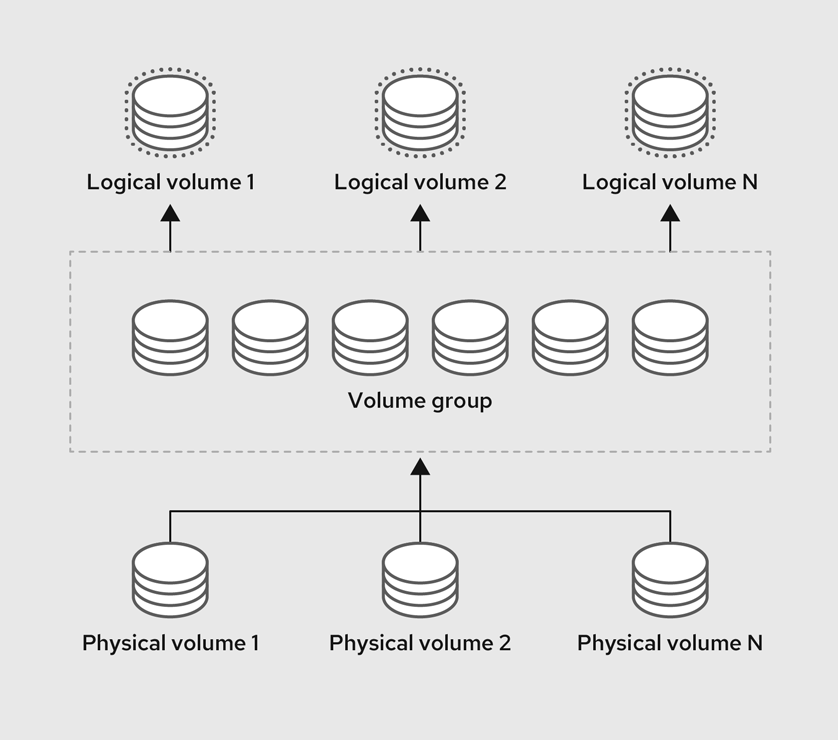
Why is it helpful? In a traditional setup, your hard drive, where your root folder is located is like a glass jar. Once it’s full of data, you can’t make the jar bigger. If you buy a second jar (a new disk), you can put new files in it, but your first jar is still overflowing and stuck.
LVM turns your hard drives into a single "pool" of storage. When your root folder is full, you just toss a new disk into that pool, tell the system to "stretch" the folder, and you have space again, without even rebooting.
After that, create a physical volume inside our crypted container.
pvcreate /dev/mapper/sda5_cryptCreate LVMGroup volume group.
vgcreate LVMGroup /dev/mapper/sda5_cryptCreate root and swap logical volumes in LVMGroup.
lvcreate -L 10G LVMGroup -n rootlvcreate -L 2.3G LVMGroup -n swap
Now we need to format root in ext4 format, swap in swap format.
mkfs.ext4 /dev/LVMGroup/root
mkswap /dev/LVMGroup/swap
Power off the machine and start again in GUI mode, where we can do the rest of installation. If you are failed to boot, just choose your ISO file.
- Note:
I tried to continue in text installation regime, but I had problems to configure mountpoints. I haven’t found what was the issue. In GUI installator there is a straightforward way how to enter mountpoints and I didn’t have any issues so I chose this variant.
Enter GUI installation continue to Installation Destination, click on available hard disk and choose Custom configuration option and continue.


Unlock your encrypted disk and enter passphrase.

Now, under Unknown there’s nothing we can do with sda1. It’s not a big deal, delete it, we will create it again later.

Click on root, reformat it in ext4 and assign '/' mount point. You must reformat, otherwise you will catch an error.

After that, reformat swap in swap format.
Click on plus button and enter /boot mountpoint, give it 512M as we did it before. Reformat it in ext4 after it’s done.

- Note:
If you’ll try to continue, program could ask you to createbiosbootmountpoint and give it1MiBof space. Do that for continuing installation.
Now click Done and accept all of your changes.
Click on KDump and choose automatic option.

After that, you need to enable root account. Accessing root account via SSH should be disabled.

Finally, you are done! Click on Begin installation and have a cookie!

3. Post installation
After we done, boot your system and login to your root account.
Partitions
After installation, we need to add other logical volumes in our LVMGroup and mount them.
Let’s create those logical volumes:

Now, when you execute lsblk command you will see this result:

These volumes need to be formatted and mounted. Let’s do that with following commands:
mkfs.ext4 /dev/LVMGroup/home
mkfs.ext4 /dev/LVMGroup/var
mkfs.ext4 /dev/LVMGroup/srv
mkfs.ext4 /dev/LVMGroup/tmp
mkfs.ext4 /dev/LVMGroup/var-log
After formatting, let’s mount devices:
mount /dev/LVMGroup/home /home
mount /dev/LVMGroup/var /var
mount /dev/LVMGroup/srv /srv
mount /dev/LVMGroup/tmp /tmp
mkdir /var/log
mount /dev/LVMGroup/var-log /var/log
After you write lsblk command, result will be:

In the next step, we want our system to do this mounting automatically. For that we can configure /etc/fstab file.
- Note: This file is critical, if you make a mistake, system could stop booting, so be cautious during the configuration.
vi /etc/fstabWrite these configurations down below. Don’t change anything what is already there:
/dev/mapper/LVMGroup-root /     ext4 defaults 0 0
/dev/mapper/LVMGroup-home /home ext4 defaults 0 0
/dev/mapper/LVMGroup-var /var   ext4 defaults 0 0
/dev/mapper/LVMGroup-srv /srv   ext4 defaults 0 0
/dev/mapper/LVMGroup-tmp /tmp   ext4 defaults 0 0
/dev/mapper/LVMGroup-var--log /var/log ext4 defaults 0 0- Note: I used device names here to keep things simple for this demo. In a real project, it’s better to use UUIDs (unique IDs). Device names can change if you plug in new hardware, which can break your setup. UUIDs never change.
In result you will be having something like this:

Now we can check for errors using:
mount -aIf you didn’t catch any error – that’s good, we can reboot now and check if everything works. If you have errors, then check your /etc/fstab file again.
rebootLet’s check if our partitions are still correct:

Great! We have all partitions part done! Now we can continue with our project.
Changing Hostname
Change hostname using following command
hostnamectl set-hostname [name]Accordingly to project’s guidelines, my hostname will be someyer42.
Edit /etc/hosts file, add a new line: 127.0.1.1 someyer42 below localhost lines.
vi /etc/hosts
Now you can reboot and check new hostname using following command:
hostnameCheck full name with this command:
hostname -fBoth should be showing your new hostname.
Now let’s update your system.
dnf updateInstall everything it shows and we are ready to continue.
- Note:
dnf updateanddnf upgradedo the same thing in Rocky (they are aliases). It’s not the case for Debian systems:apt updateandapt upgradeare a bit different.
4. Open-SSH configuration
Open-SSH is a way to connect to your server’s shell remotely from another computer.
- Since we are switching the "entry door" from the default Port
22to Port4242, we have to do two extra things: tell the Firewall to let people through that new port, and tell SELinux to allow the SSH program to use it.
Add port 4242 in Virtual Machine settings
Open Oracle VirtualBox, choose your virual machine and click on settings, after that go to Network section and find Port forwarding. Inside a new window create a new port, that has Host Port 4242, Guest Port 4242, name it (e.g. ssh) and click OK.

Change ssh config file
A lot of people, including hackers know, that 22 is a port for ssh. If we change this standard port to another one, the system will be more secure. In project guidelines they want us to change it to port 4242.
Let’s change standard port to 4242 in config file. Open this file: /etc/ssh/sshd_config
Uncomment line with Port 22 and change it to
Port 4242.

As you can notice, on SELinux system you also need to tell SELinux about this change.
Telling SELinux about this change
SELinux (Security Enhanced Linux) is a security guard that labels every file and program to ensure they can only access what they are specifically allowed to, even if they have administrator power.
We also need to install some specific packages, if they are not installed already.
sudo dnf install policycoreutils-python-utilsRun this command to add port 4242:
semanage port -a -t ssh_port_t -p tcp 4242Without this command, SELinux will see the SSH service trying to use port 4242 and think, "Hey! SSH is only allowed to use port 22".
Now when it’s done, let’s add port 4242 to firewall.
Adding port to our firewall
firewall-cmd --permanent --zone=public --add-port=4242/tcp
firewall-cmd --reload
Now we should be able to connect to our server remotely, using terminal in our operation system (your normal system, not Virtual Machine). It also will give you the opportunity to copy+paste, using fish and so on. The only thing to remember: ssh is disabled for root account for security reason.
Let’s create a new user, set a new password and give it sudo priveleges, so we can login using this account.
Go to your Rocky and type:
adduser someyer42
passwd someyer42
usermod -aG wheel someyer42
If you already had this user, you don’t remember the password, you can delete it and then repeat to create it once again.
userdel -r someyer42-r flag is used to delete someyer42 folder from /home in the same time (otherwise it will just remain there).
Let’s connect to our virutal machine via SSH. Open your terminal and use this command
ssh someyer42@localhost -p 4242
Now we can continue in this session. You can finally copy paste easily, so maybe it will be helpful, if you’ll need to troubleshoot something.
As bonus, install a text editor that you like. I prefer to use vim.
sudo dnf install vimPassword Policy
Aging policy
We have several config files that we need to edit. Let’s start with password’s aging policy.
Open /etc/login.defs file using your text editor.
sudo vim /etc/login.defsMake changes, so you have these lines (uncommented): PASS_MAX_DAYS 30, PASS_MIN_DAYS 2, PASS_MIN_LEN 10, PASS_WARN_AGE 7 like on the screenshot

Save it. Now let’s continue with our password policy.
Password complexity
Open /etc/security/pwquality.conf file.
sudo vim /etc/security/pwquality.confUncomment and change to following lines: difok=7 minlen=10 dcredit=-1 ucredit=-1 lcredit=-1 maxrepeat=3, usercheck=1, enforcing=1. Above each of these line you will have an explanation for what it does.
Save it and open /etc/pam.d/system-auth:
sudo vim /etc/pam.d/system-authAdd extra rules after password requisite pam_pwquality.so line, so it appears like in the screenshot. I tried without it and some functions (like retrying to type password 3 times) didn’t work without this change.
password requisite pam_pwquality.so retry=3 minlen=10 ucredit=-1 lcredit=-1 dcredit=-1 maxrepeat=3 reject_username enforce_for_root
Save it and change passwords in root and your account. Policies will apply after you change passwords.
Lits of helpful commands:
-
Changing to different account (e.g.
root)su root -
Changing your password
passwd -
Changing password of another user (you need to have sudo priveleges)
passwd username -
Check aging policy applied to a user
chage -l username
Configuring sudoers file
You need to add or modify these lines in the /etc/sudoers file to meet the project’s security standards:
-
Limit Authentication Attempts: Sudo must be limited to exactly 3 attempts if a password is incorrect.
-
Custom Error Message: You must display a custom message of your choice when a user enters the wrong password.
-
Log Everything: Every action performed with sudo—including the inputs and outputs – must be logged in the folder /var/log/sudo/.
-
Enable TTY Mode: For security reasons, TTY mode must be enabled.
-
Restrict Paths: The paths available to sudo (the secure_path) must be restricted to a specific list (e.g. make this line, that starts with
Defaults secure_pathto have this path:/usr/local/sbin:/usr/local/bin:/usr/sbin:/usr/bin:/sbin:/bin:/snap/bin).
Open that file using following command:
sudo visudoIt should appear like this. (Add missing lines, if you cannot find something)

Save it and test, if you have a custom message on a wrong sudo password (try any sudo command / logout, and try a sudo command after you are logged in).

Also don’t forget to create a log folder.
sudo mkdir -p /var/log/sudop flag creates the directory only if it doesn’t already exist.
I recommend you to navigate there after some time and see your logs.
Monitoring script
We need to create monitoring.sh file. I have located it inside /usr/local/bin directory.
Let’s be honest, it will be too easy if I’ll just give you my script and tell you to use it. I want you to write a bash script yourself, so you can remember something and explain it to evaluator.
- You should be having shebang
#!/bin/bashon the start ofmonitoring.shfile. - It broadcasts a message every 10 minutes (see
wallcommand). - You can automate it using
crontab. I think it’s easiest way how to do it. - It should start after booting of your system.
Useful bash commands:
- I often used
awkto navigate to different columns andgrepto filter information. uptimefor checking CPU runtime.hostname -Iis very convenient way to find your IP address.nmcliis a NetworkManager, that is already installed in Rocky. You can find a lot of information there, e.g. your MAC adress.df -hfor checking your disk usage.sedif you noticed, that you have undesired characters, like,on the end of the line.man uname. Uname has a lot of information about your system, it’s architecture, kernel version and etc.free -hfor checking your RAM.
Don’t forget to give appropriate permissions to your monitoring.sh file
Automating with crontab
Firstly, check if you have cron already installed.
systemctl status crondcrond is a cron deamon (background process). You use crontab command to schedule your tasks.
Run this command:
sudo crontab -eIf file is empty, that’s fine. It’s exactly how it should be.
The Syntax: You tell crond when to run a task using five fields (the "stars") followed by the command.
- First star: minutes (0-59)
- Second star: hours( 0-23)
- Third star: day of month (1-31).
- Fourth star: month (1-12)
- Fifth star: day of week (0 – 6) (Sunday=0 or 7)
e.g. add */10 * * * * /path/to/your/script.sh. It will make you script to run automatically each 10 minutes.
And for reboot you can try to add second line @reboot /path/to/your/script.sh. If it didn’t work, you can try @reboot sleep 10 /path/to/your/script.sh
Bonuses
this part is coming soon
…
Resources
-
Rocky Linux Guides from their official website – link
-
Book – How Linux Works by Brian Ward
-
Born2beroot guide, I found on internet – link
-
My peer
iskorepovahelped me a lot, when I couldn’t solve my issues with bonuses. Also, my another peer –mbalazhelped me to troubleshoot my problems with password policy. -
Google & Geminifor troubleshooting my problems. -
UTM vs. VirtualBox comparison: link
-
I used
Geminifor quick comparison between SELinux and AppArmor, same for UFW and firewalld.
Leave a Reply